How to change the default language in Chrome
To change the language, first open the browser. Before you change the Chrome language, it’s a good idea to save any content you might need later. Otherwise, the content will be lost because the browser will restart after the language update. Once you’ve saved important files and content, simply follow our guide.
Step 1: Open Chrome settings
Open the browser menu by right-clicking on the three-point icon. Next, select the menu item “Settings.” Alternatively, you can access the Chrome settings by entering “chrome://settings/” in the address bar.
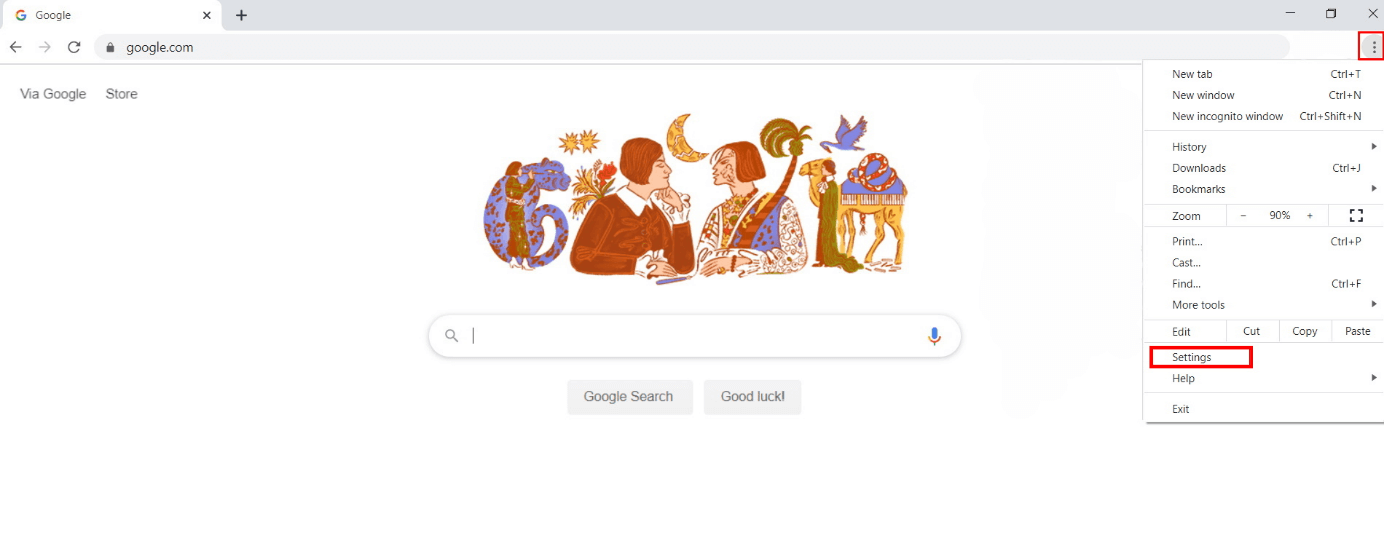
Step 2: Open advanced options
Scroll down to the settings and click on the “Advanced” button to open additional options.
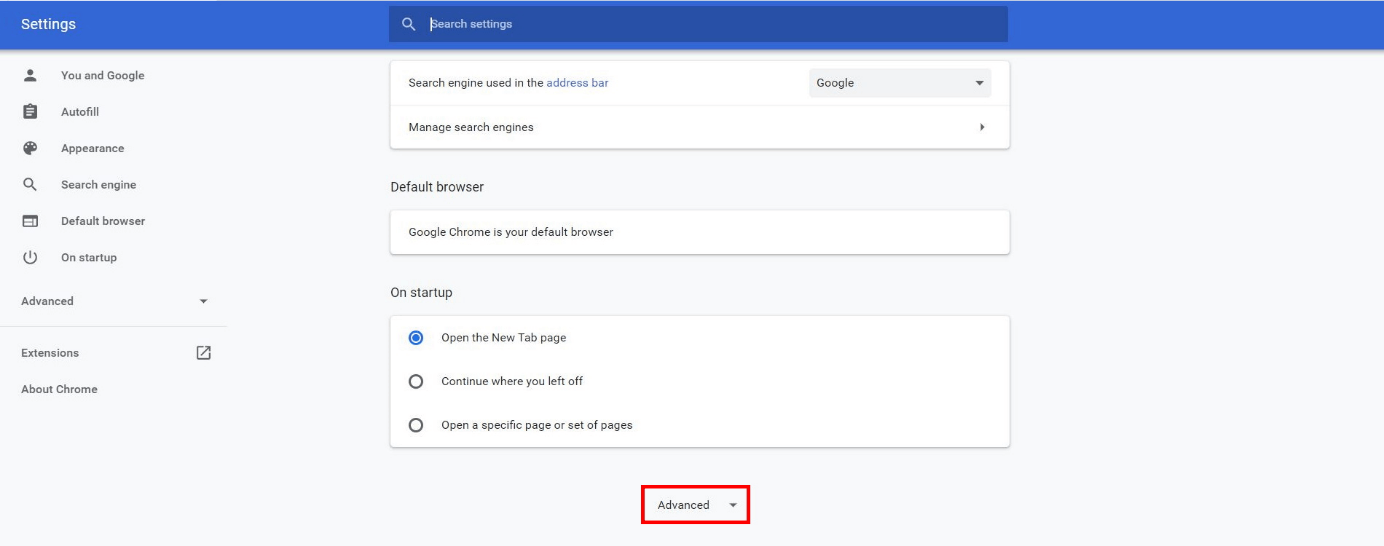
Step 3: Change Google Chrome language
In the newly opened section, scroll down to the “Languages” section. You can configure the Chrome language using the first option. Simply click on “Language.”
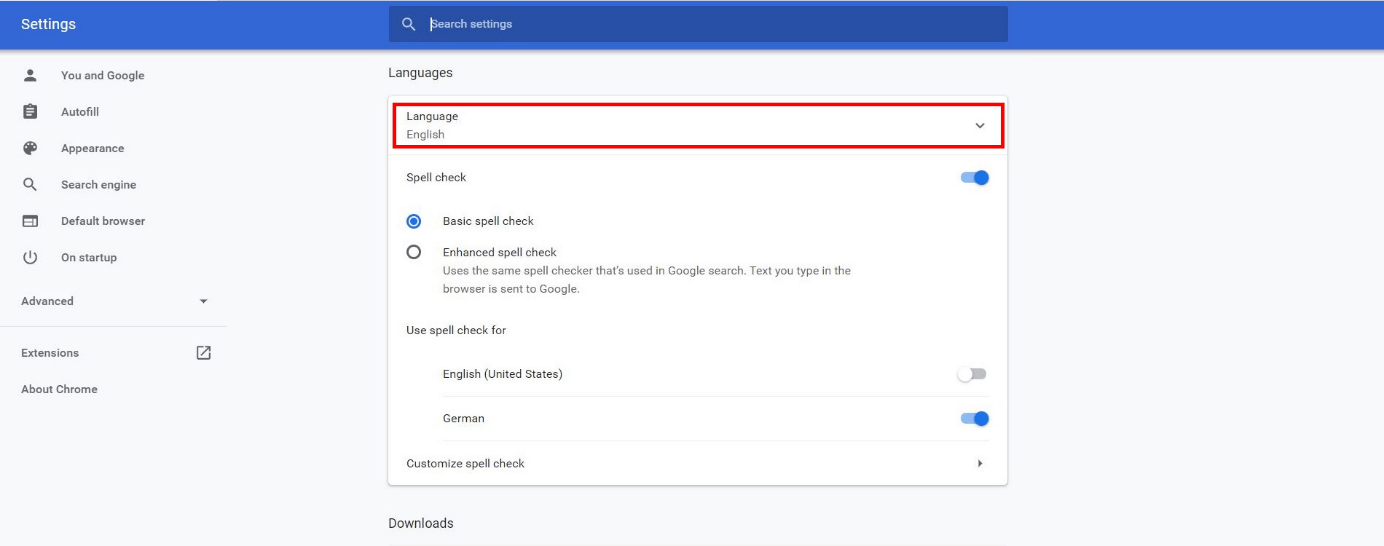
The next step depends on whether your preferred language is already shown or not:
The preferred language is listed:
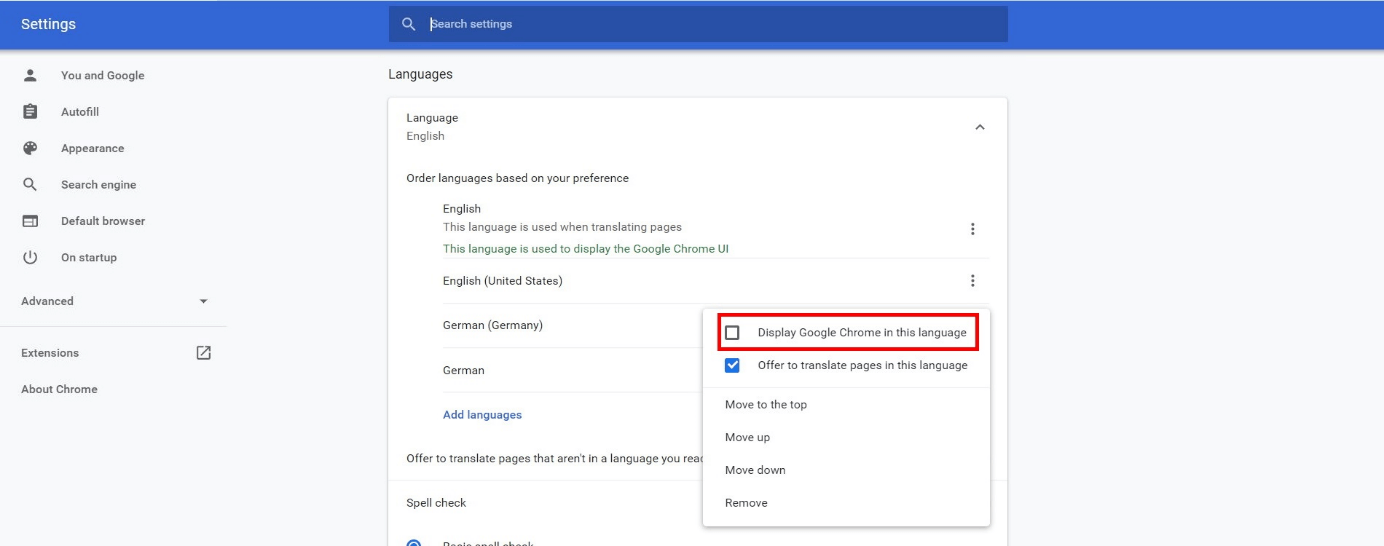
If your preferred language is already listed, click on the three points in the corresponding row.
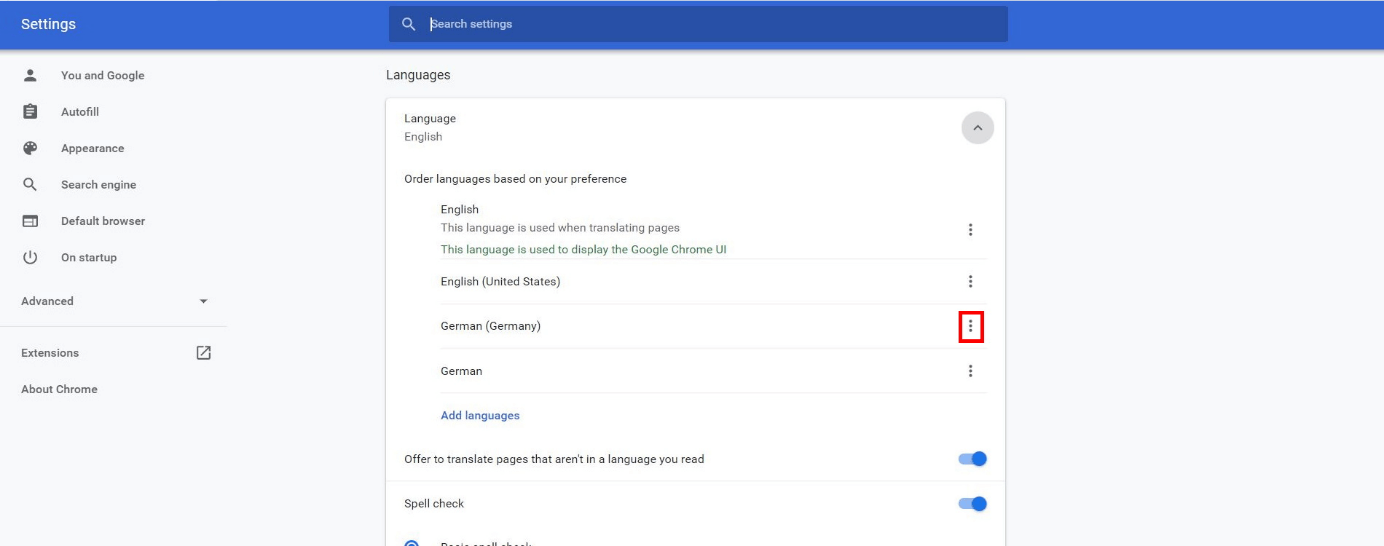
Next, choose “Display Google Chrome in this language.”
The preferred language is not listed:
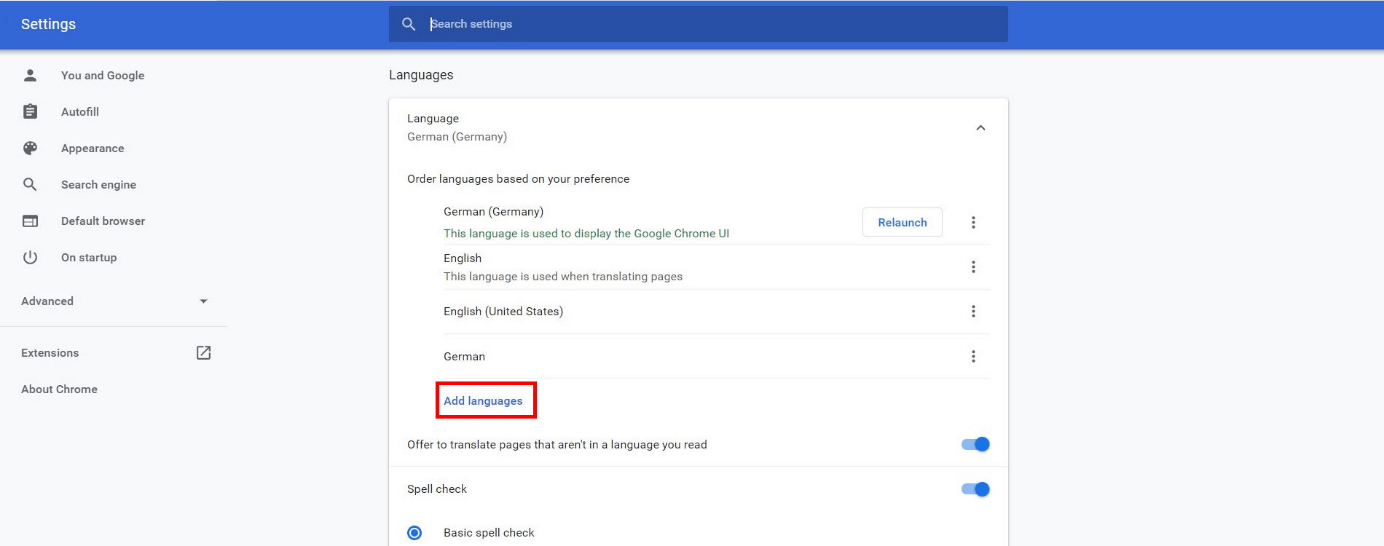
If the desired language is not shown in the list, select “Add languages”:
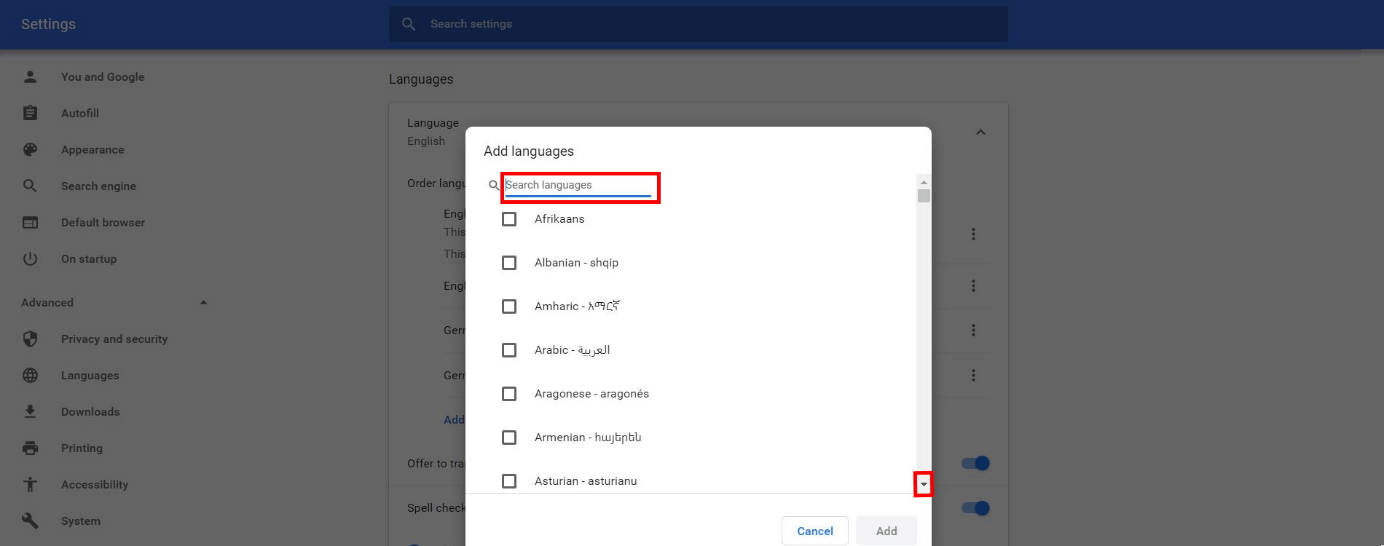
You’ll have two options in the selection menu that follows:
- Scroll through all available languages and select the preferred variant using a mouse click.
- Look for the language using the search function and select the relevant control box.
Then, click on “Add” to save the settings:
The desired language will now be shown in the list. To activate it, follow the step above for “The preferred language is listed.”
Step 4: Restart Chrome
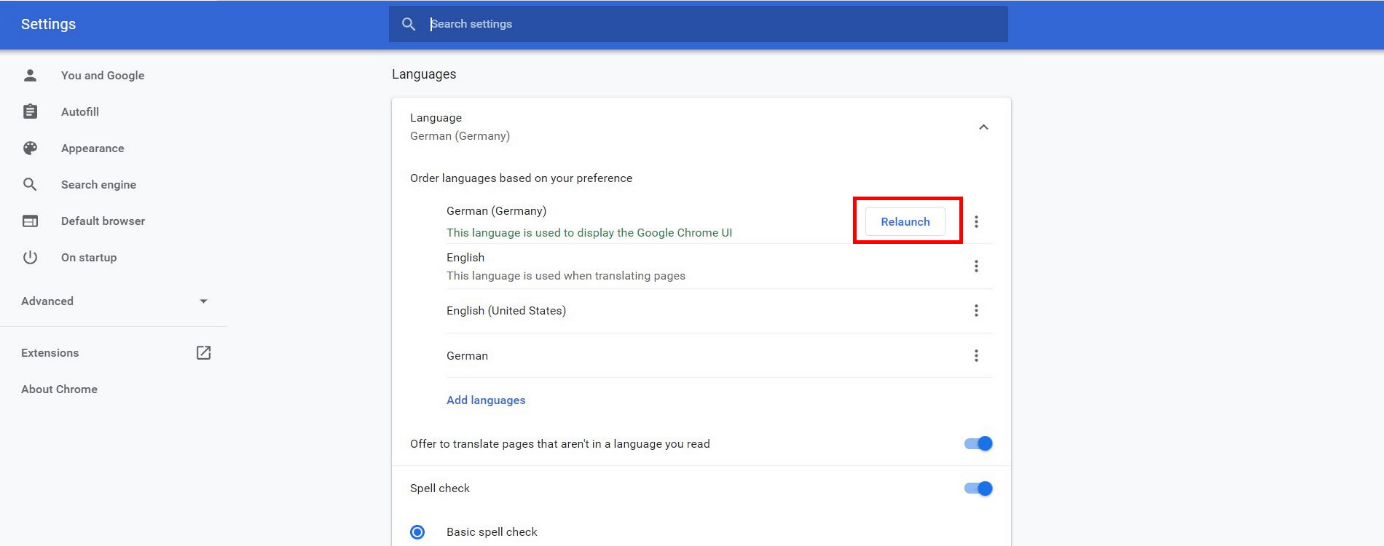
In order for Chrome to now display this newly selected language, click on “Restart.” The browser will close automatically. When it reopens, the browser interface will appear in the new language.
Quick overview: changing the Chrome browser language
Here’s an overview of the key steps for changing the Chrome language:
- Open the menu item “Settings.”
- Expand the displayed settings and scroll down to the “Language” section.
- Choose the preferred language and select “Display Google Chrome in this language”.
- If the preferred language is not listed, select the option “Add languages.”
- Finally, click on “Restart”.
- After restarting the browser, the new language settings will be activated.